
Gaming forums are full of numbers: 60 fps, 144 Hz, 1 ms. They’re often mixed up, even though each one describes a different part of the chain from your hand to your eyes. Once you know what each one measures, it’s much easier to choose settings, a TV or a monitor.
FPS: how fast the game draws
Frames per second is how many images your console or graphics card produces each second. At 30 fps a new frame appears every 33.3 ms, at 60 fps every 16.7 ms, and at 120 fps every 8.3 ms. More frames means smoother motion and the game reacts to you more often.
It’s easier to think in milliseconds than in fps. The game has a time budget for each frame. At 60 fps it has 16.7 ms to work out physics, AI, animations and lighting, and then draw everything. If a busy scene needs 20 ms, the game can’t keep 60 fps and something has to give.
That’s why many console games offer a choice:
- Quality mode — higher resolution and more effects, usually at 30 or 40 fps.
- Performance mode — lower resolution or fewer effects, but 60 fps or more.
There’s no universally right answer. In slow, cinematic games quality mode can look great. In action games most people prefer performance mode once they’ve tried it.
Hz: how fast the screen can show it
The refresh rate in hertz is how many times per second the screen can display a new image. A 60 Hz TV can’t show more than 60 frames per second, even if the game makes 200. The extra frames are simply thrown away, or they cause tearing: a visible line where two frames meet.
That’s why a 144 Hz monitor only makes sense when the game can actually run above 60 fps. The most common refresh rates today are 60, 120, 144, 165 and 240 Hz, and monitors for competitive players go even higher.
Moving from 60 to 120 Hz is a clearly visible jump. The mouse pointer alone looks different. Moving from 144 to 240 Hz is much harder to notice for most people. The higher you go, the smaller the gain.
Why 60 fps can still stutter
The average doesn’t tell the whole story. If one frame takes 10 ms and the next 40 ms, the counter can still say “60”, but you’ll feel a hiccup. Smooth play needs even frame timing.
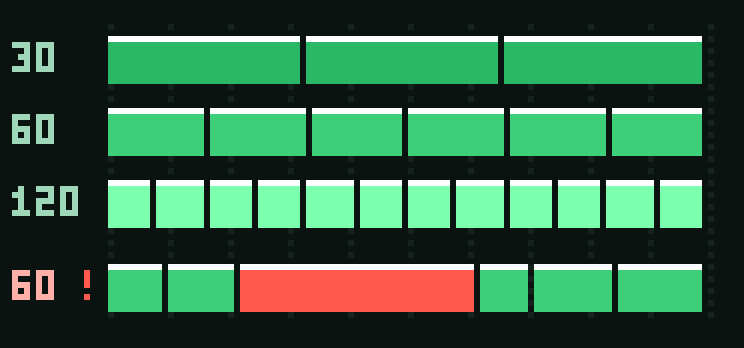 Each block is one frame, and the full width is 0.1 seconds. Higher fps means shorter frames. The last row also averages about 60 fps, but one very long frame (in red) is exactly what a stutter is.
That’s why reviewers increasingly show not only average fps but also “1% lows”: how fast the slowest frames are. A game with a steady 50 fps can feel better than one jumping between 40 and 90.
The classic fix for tearing is V-Sync. The game waits for the screen and only sends a whole frame when the screen is ready. Tearing disappears, but V-Sync adds delay, and when the game misses the deadline, the frame waits for the next refresh. On a 60 Hz screen that means a sudden drop to 30 fps for a moment.
This is what technologies like VRR (G-Sync, FreeSync, HDMI 2.1 VRR) solve: the screen waits for the next frame instead of refreshing on a fixed clock. Drops from 60 to 50 fps then feel much softer, and there’s no tearing. VRR works within a range, for example 48–120 Hz. Below the bottom of that range the problems come back.
Input lag: the delay you feel in your hands
Input lag is the time from pressing a button to seeing the result. It adds up from the controller, the game itself, the graphics card and the screen. TVs often add a lot of processing, which is why they have a “game mode” that turns it off.
The difference can be big. A TV in its normal picture mode can add several dozen milliseconds of delay. In game mode it’s often a fraction of that. You may not “see” the difference, but you’ll feel that aiming or jumping is lighter and more precise.
Higher fps also lowers input lag, because the game reads your input and shows the result more often. That’s one reason competitive players chase very high frame rates, even when the screen can’t show all of them.
Watch out for frame generation (like DLSS Frame Generation): it makes the fps counter higher by inserting extra frames, but those frames don’t make the game react faster. Lag can even rise slightly. It works best when the game already runs at a decent frame rate, and it’s not a good way to rescue a game that runs at 30.
And what is “1 ms” on the box?
Monitors often advertise “1 ms response time”. This is a different thing again. It measures how quickly a pixel changes from one colour to another. Slow pixels cause blurry trails behind moving objects. It has nothing to do with input lag, even though the numbers look similar. Also, every manufacturer measures it a little differently, so it’s hard to compare.
What to look at
- In story games, a steady 60 fps on a TV with game mode on is plenty.
- In competitive shooters, high fps and low input lag matter more than resolution.
- If your TV or monitor has VRR, turn it on. It’s the cheapest upgrade you’ll ever get.
- Turn on game mode on your TV. It costs nothing and helps every game.
- When buying a TV for a console, look for HDMI 2.1, 120 Hz and VRR.
Frequently asked questions
Can the human eye even see more than 60 fps?
Yes. There’s no hard limit at 30 or 60 fps. Most people can easily tell 60 from 120 fps, especially in fast motion. The gains get smaller at higher numbers, but the old idea that “the eye only sees 30 fps” is a myth.
Is it better to lock fps or leave it unlocked?
If your fps jumps around a lot and you don’t have VRR, a lock (for example at 60) often feels smoother than an unlocked counter that keeps changing. With VRR, unlocked usually works well.
Why does my game run at 60 fps but still feel sluggish?
The most likely suspects are the TV’s picture processing (turn on game mode), V-Sync, or a wireless controller with a weak connection. Check those first before you blame the game.


